Navigation Plugin
The purpose of this plugin is to provide ease of use improvements to navigate the trace plot.
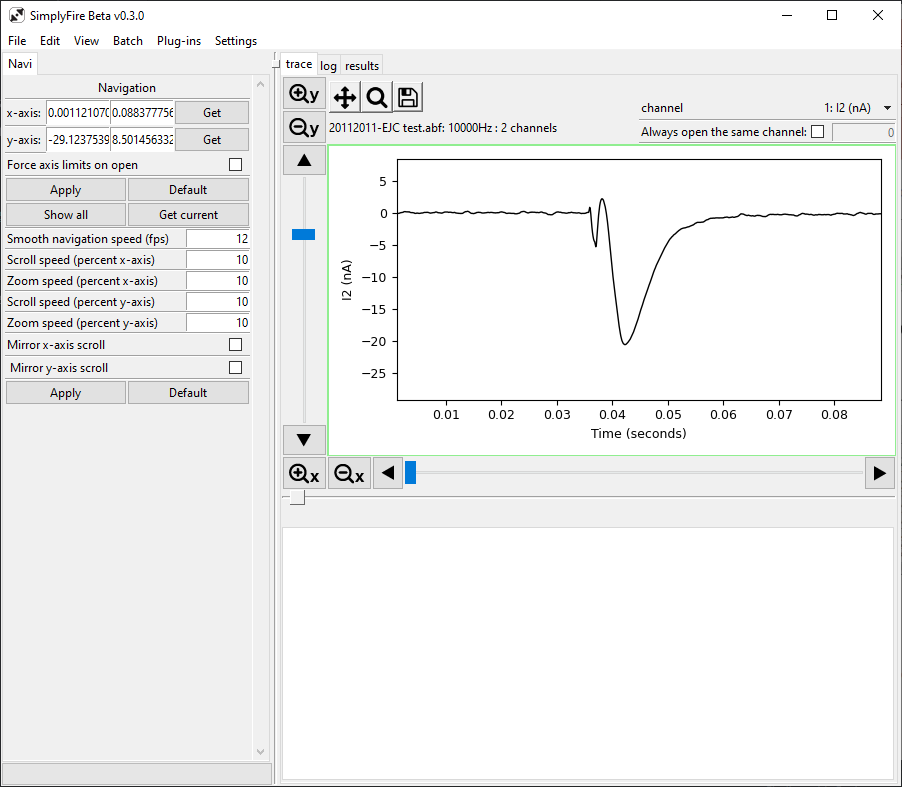
A typical layout of the Navigation Plugin.
Tab title: Navi
Set axes limits
Lower and upper limits of the x- and y- axes can be inputted into the corresponding areas.
- Get buttons
For each x- and y- axes, the
Getbutton fills the form with the values from the current axis limits. TheGet currentbutton fills the information for both the x- and the y-axes.‘auto’ can be written to allow the software to automatically determine the lower and/or upper bounds.
- Force axis limits on open
Check the box to set the x- and y-axes limits when a new recording file is opened. Useful if there is a consistent range of the data points that should be excluded from analysis.
- Apply button
Enforces the axes limits as indicated in the form.
- Default button
Returns the axes limit inputs to default values (‘auto’)
- Show all button
Press this button to make the entire recording data fit in the visible axes. The same effect can be achieved by pressing the Home key.
The rest of the parameters alter how the navigation tools behave.