Batch Processing
SimplyFire offers batch processing to speed up processing.
To access the batch-processing tool, go to Batch -> Batch Processing
- A standard process for setting up and running batch process is as follows:
Build a protocol
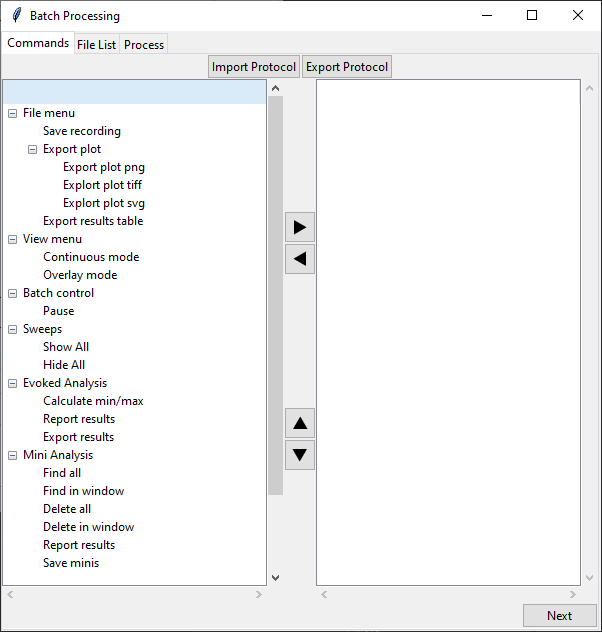
Typical protocol builder window within batch processing
The batch protocol can be built in the Commands tab in the Batch Processing
window.
Note that the protocol always starts with the file open command (the list of files to be opened are declared in the next step).
A list of commands are listed in the left-hand column.
Commands belonging to plugins are listed under their respective plugin names.
Categories can be expanded or minimized by clicking the + or - icons
listed next to the category names, respectively.
A command may be selected by left click.
To add a command to the protocol, select the desired command name and click the right arrow in the middle of the window.
The command name should now appear in the protocol list on the right-hand side.
Multiple commands may be added to the protocol list.
Commands in the protocol list may be deleted by selecting the command and pressing Delete/Backspace/e or by clicking the left arrow in the middle of the window.
Command order can be changed by selecting a command and clicking the up or down arrows located in the middle of the batch processing window.
The protcol list may be saved by Export Protocol button and an existing
protocol may be imported by Import Protocol button.
Click Next to proceed to the next step.
List filenames
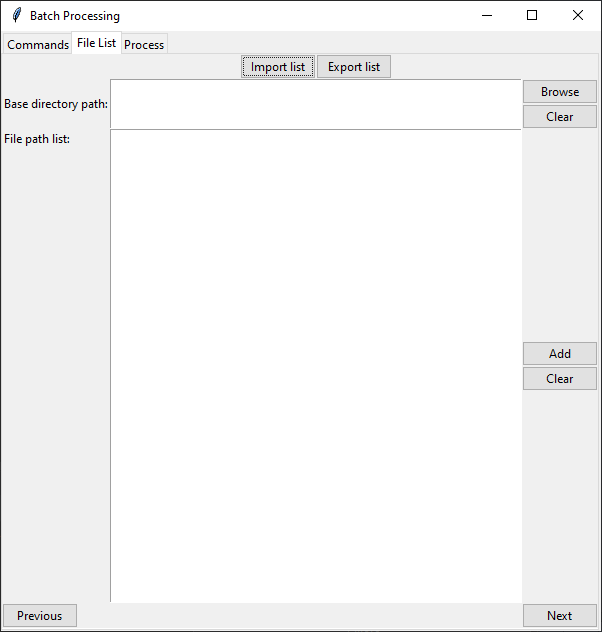
Typical file list window within batch processing
The protocol built in the previous step is applied to every file opened.
This step declares the list of files that should be opened by SimplyFire.
File paths can be declared by inserting the full paths in the File path list:
text box. Each file path should be separated by a newline.
File paths may be typed manually or added from file browser by
clicking on the Add button.
Multiple files may be selected through the file browser.
Alternatively, a directory may be declared in the Base directory path: by
clicking on the Browse button and selecting the desired directory. Insert the
filenames within the directory to File path list:.
Each file name should be separated by a newline.
The file list may be saved by clicking on the Export list button and existing
file list may be imported by clicking on the Import list button.
Click Next to proceed to the next step.
Run protocol
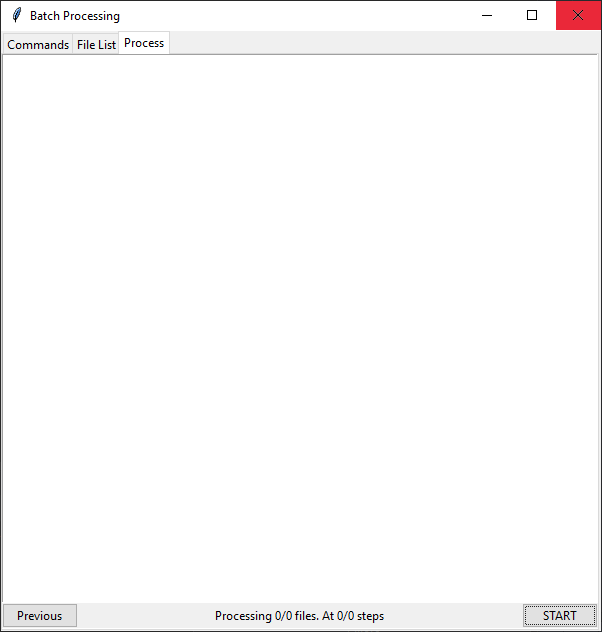
Typical processing window in batch processing.
Press START to start the batch processing.
If a Pause command is part of the protocol, the software pauses batch
processing and waits for the user to press RESUME.
Processing may be stopped by pressing STOP.
Errors encountered during processing will be listed in the processing window.